A quick setup guide

Add a virtual pet to your Mac in 2 minutes

A real installation guide — including the one macOS security warning that trips up most people and how to get past it in ten seconds.

By Vanja Ivancevic · Paw-Paw team · Updated April 17, 2026 · 4 min read

What you'll need

A Mac running macOS 12 or later, about 20 MB of free space, and roughly two minutes. If you hit a "cannot be opened" message from macOS during install, see Step 3 — that is the part everyone searches for and nobody explains well.

Most Mac users find a desktop pet via a TikTok of someone's aesthetically pleasing MacBook setup, then spend fifteen minutes trying to figure out why it "won't open." This guide skips straight to what actually matters. Steps 1 and 2 are standard macOS — you've done them a hundred times. Step 3 is the one that trips people up, and it has a ten-second fix that most guides just don't cover.

1

Download Paw-Paw

Go to paw-paw.pet and click Download Free for Mac. A .dmg file will land in your Downloads folder. It is about 15 MB. No account, no email — just a download.

Paw-Paw is the app we make, so this guide is naturally written around it. It is a free, native Swift app — not a port, not a web wrapper. If you want to compare other Mac desktop pets first, see our full comparison.
2

Open the DMG and drag to Applications

Double-click the .dmg file in your Downloads folder. A window opens showing the Paw-Paw icon and an Applications folder shortcut. Drag the Paw-Paw icon onto the Applications folder. That's the install step — nothing else happens yet.

You can eject and delete the .dmg file after this. It is just a delivery container; the app is now in /Applications/Paw-Paw.app.

3

Handle the macOS security warning

Double-click Paw-Paw in Applications. On first launch, macOS will probably show a dialog: "Paw-Paw cannot be opened because it is from an unidentified developer" — or a variant saying it cannot be verified. Do not panic. This is macOS Gatekeeper doing its job, and it is not telling you the app is unsafe.

What's actually happening

Gatekeeper blocks apps that are not distributed through the Mac App Store and are not from developers enrolled in Apple's paid Developer Program. Paw-Paw is a signed and notarized DMG — Apple has scanned it for malware — but distributing outside the App Store still triggers this dialog.

To allow it, do this once:

  1. Open System Settings (the gear icon in your Dock or Apple menu)
  2. Go to Privacy & Security
  3. Scroll down to the Security section
  4. You'll see a message: "Paw-Paw was blocked from use…" — click Open Anyway
  5. Enter your Mac password if prompted, then click Open in the final dialog

You only ever need to do this once per Mac. After that, Paw-Paw opens normally like any other app.

4

Grant Accessibility permission

After you open Paw-Paw, it will ask for Accessibility access. This is the permission macOS uses to gate global keyboard and mouse event detection. Paw-Paw needs it to know when you are typing so the pet can react.

What it does and doesn't do

Accessibility access lets Paw-Paw count keystroke and click events. That is all. It only counts — nothing is logged, stored in a file, or sent off the device. The character animation triggers on keystrokes; there is no network component to this feature.

To grant it: when the dialog appears, click Open System Settings. In Privacy & Security > Accessibility, toggle the switch next to Paw-Paw to on.

If Paw-Paw is already in the list but toggled off, just toggle it on. If it is not in the list, click the + button and add it from Applications.

5

Pick your animal and start typing

That is the install done. A small animal appears in the corner of your desktop. Start typing anywhere and it reacts to every keystroke.

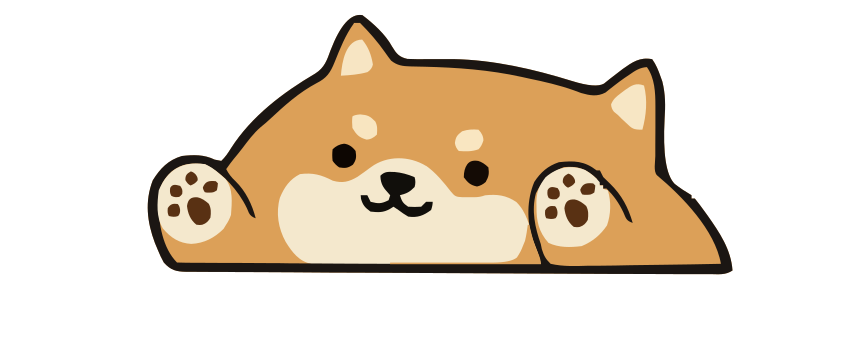
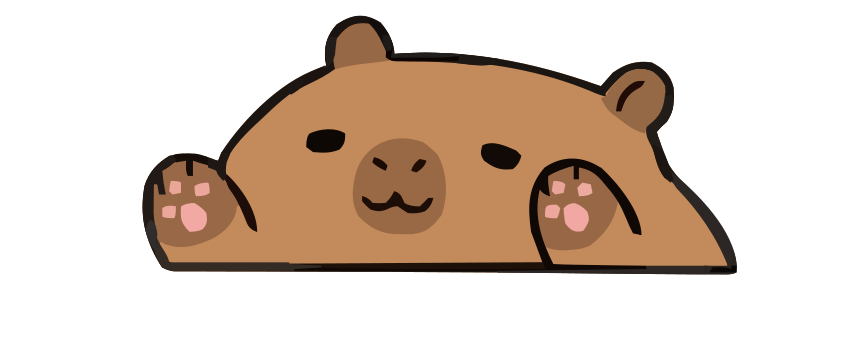
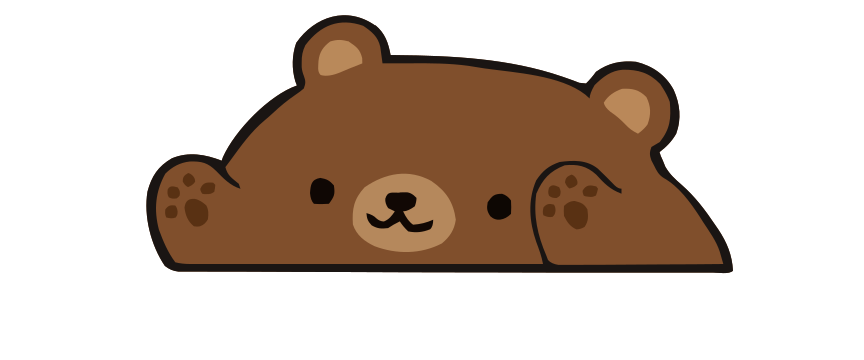
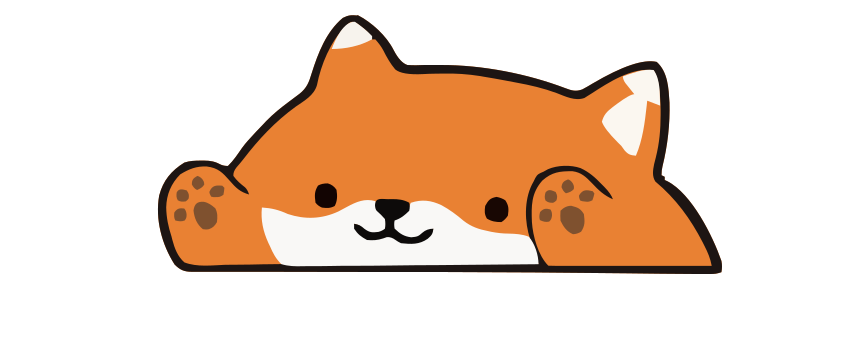
Paw-Paw bear sprite Paw-Paw fox sprite Paw-Paw shiba sprite Paw-Paw capybara sprite Paw-Paw raccoon sprite

Click the Paw-Paw icon in the menu bar to switch characters, assign a hat from the 32 available cosmetics, or move the pet to a different corner. You can set it to launch at login — there is a toggle in the menu. There is no setup wizard, no account creation, nothing else required.

Why Paw-Paw specifically

If you searched for "how to add a virtual pet to Mac" rather than a specific app name, you probably had a few options in front of you. Here is why Paw-Paw is the one this guide covers.

The main alternative if you want pets that roam around rather than sit and react is BitTherapy — free, App Store, no Gatekeeper friction at all. If you want a full comparison of what is out there, see the desktop pets for Mac roundup.

Questions people actually ask

Why does my Mac say Paw-Paw can't be opened?

This is Gatekeeper. It blocks apps distributed outside the Mac App Store unless you explicitly allow them. See Step 3 above — it is a ten-second fix in System Settings > Privacy & Security. You only do it once.

Why does a desktop pet need Accessibility permission?

macOS gates global keyboard and mouse monitoring behind Accessibility access. Any app that reacts to your typing anywhere on the system — not just inside its own window — needs this permission. Paw-Paw only counts events; it does not record, store, or transmit them.

Will this slow down my Mac?

No meaningful impact. Paw-Paw is a native Swift app; at idle it uses close to zero CPU. It only redraws when you type or click — brief and infrequent compared to anything actually doing real work on your machine.

Does it work on Apple Silicon (M1, M2, M3, M4)?

Yes. Paw-Paw is a universal binary — runs natively on Apple Silicon with no Rosetta translation. Also works on Intel Macs running macOS 12 or later.

How do I hide the pet without quitting the app?

Click the Paw-Paw menu bar icon and toggle Hide. The pet vanishes but the app stays running, so you can bring it back the same way. It also hides automatically in full-screen app windows by default.

How do I completely uninstall it?

Drag Paw-Paw from your Applications folder to the Trash. Then remove Accessibility access in System Settings > Privacy & Security > Accessibility if you want to clean that up too. No installer means no uninstaller needed — it is all in that one .app bundle.

Paw-Paw is free.

Not a trial, not freemium. Every animal, every hat, everything — free. Native macOS, reacts to every keystroke.

Download Free for Mac

Free · macOS 12+ · Apple Silicon + Intel