How a keyboard pet works
A typing pet for your Mac that taps along
Paw-Paw’s paws come down as you type and click, it naps when you stop, and your typing turns into levels, gifts and new friends. Here is what it does, what it can see, and how to set it up.
A typing pet is a desktop pet that reacts to your keyboard and mouse instead of wandering around on its own. Paw-Paw is the one we make: a free, native app for macOS 13 or later whose animal taps its paws as you type and click, naps when you stop, and turns your typing into XP, gifts and new Paw-Paws. It counts key presses and clicks, never what you type.
What your keyboard pet does while you type
Your Paw-Paw sits above your windows in one spot and keeps time with you. It doesn’t wander off, ask to be fed or interrupt you with chores. Everything it does follows from your key presses and clicks.
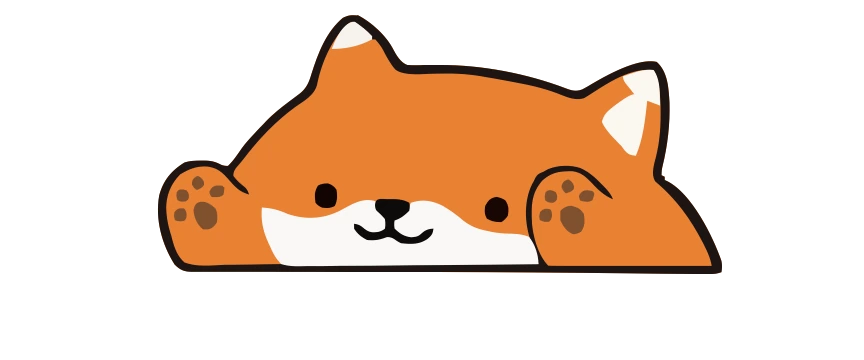 Resting
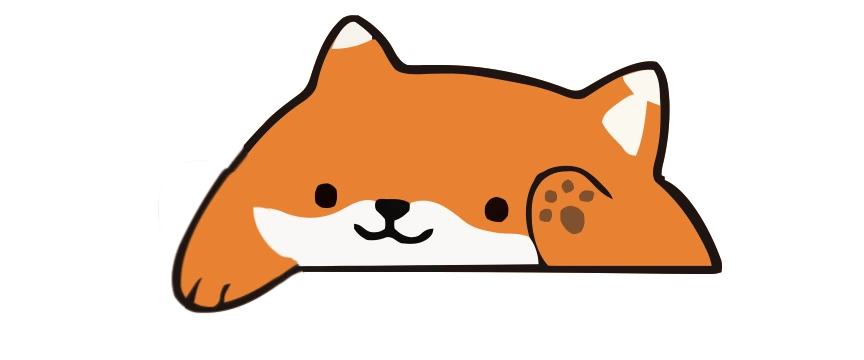 Tap
Tap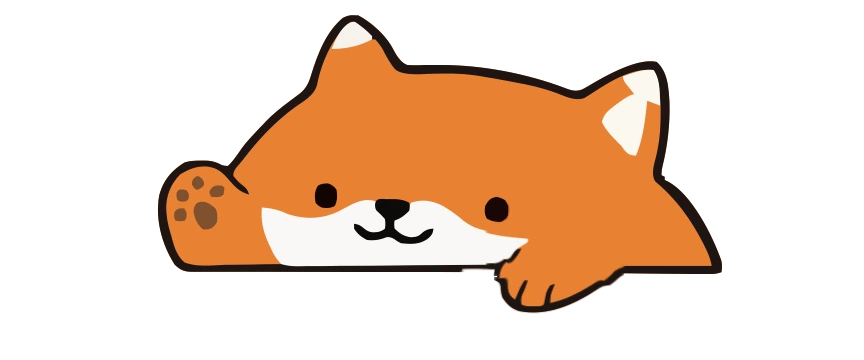 Tap
Tap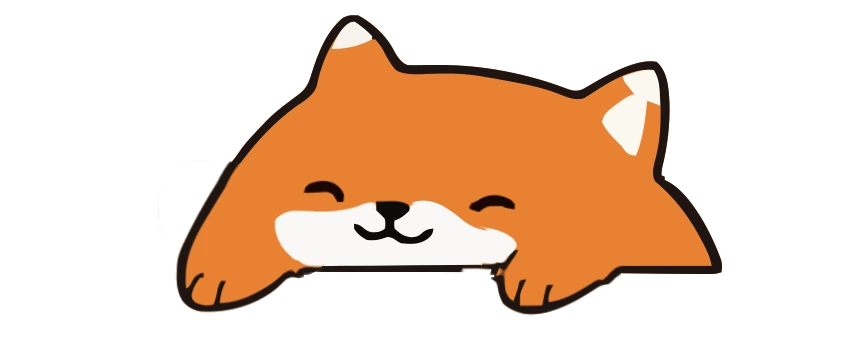 Napping
Its paws tap along
Every key press or click brings one paw down, left, then right, then left again, and lifts it a moment after you let go. Once you allow Accessibility access, this works in most apps, so your Paw-Paw keeps pace with whatever you are writing, coding or studying.
It naps when you stop
After two minutes without a key press or click, your Paw-Paw closes its eyes and falls asleep, with a little Zzz beside its head. Your next key or click wakes it. It never gets hungry or sick, and nothing bad happens while you are away.
Typing and clicking earn XP
Each key press and click adds XP to the level bar under your Paw-Paw. Every new level brings a gift: pick one of three gift balls and open it to find an item to wear, and some levels add a new Paw-Paw too. The two free seasons hold dozens of Paw-Paws and more than 100 items between them. Each season has its own levels, and you choose which one your XP goes to.
On Fire: 2× XP for a quick streak
Type quickly and steadily for about ten seconds and your Paw-Paw goes On Fire. A rainbow runs along the top of its XP bar, fiery paw prints rise from its paws as they tap, and every key press and click counts twice until you slow down.
A few kind words
Now and then your Paw-Paw cheers you on in a little speech bubble, nudging you toward the next small step. Click your Paw-Paw and it says something new; clicking the bubble closes it. Its lines are about work in general, never about what you are typing, and you can switch the automatic bubbles off in Settings.
No XP for holding a key down
Pause XP for repeated input is on by default in Settings. Holding a key down, or hitting the same key or mouse button (or two back and forth) in a fast burst, earns no XP, and the XP bar shows “Anti-Cheat” with a pause sign while it holds XP. Ordinary typing, double letters and double-clicks still count, and you can switch it off.
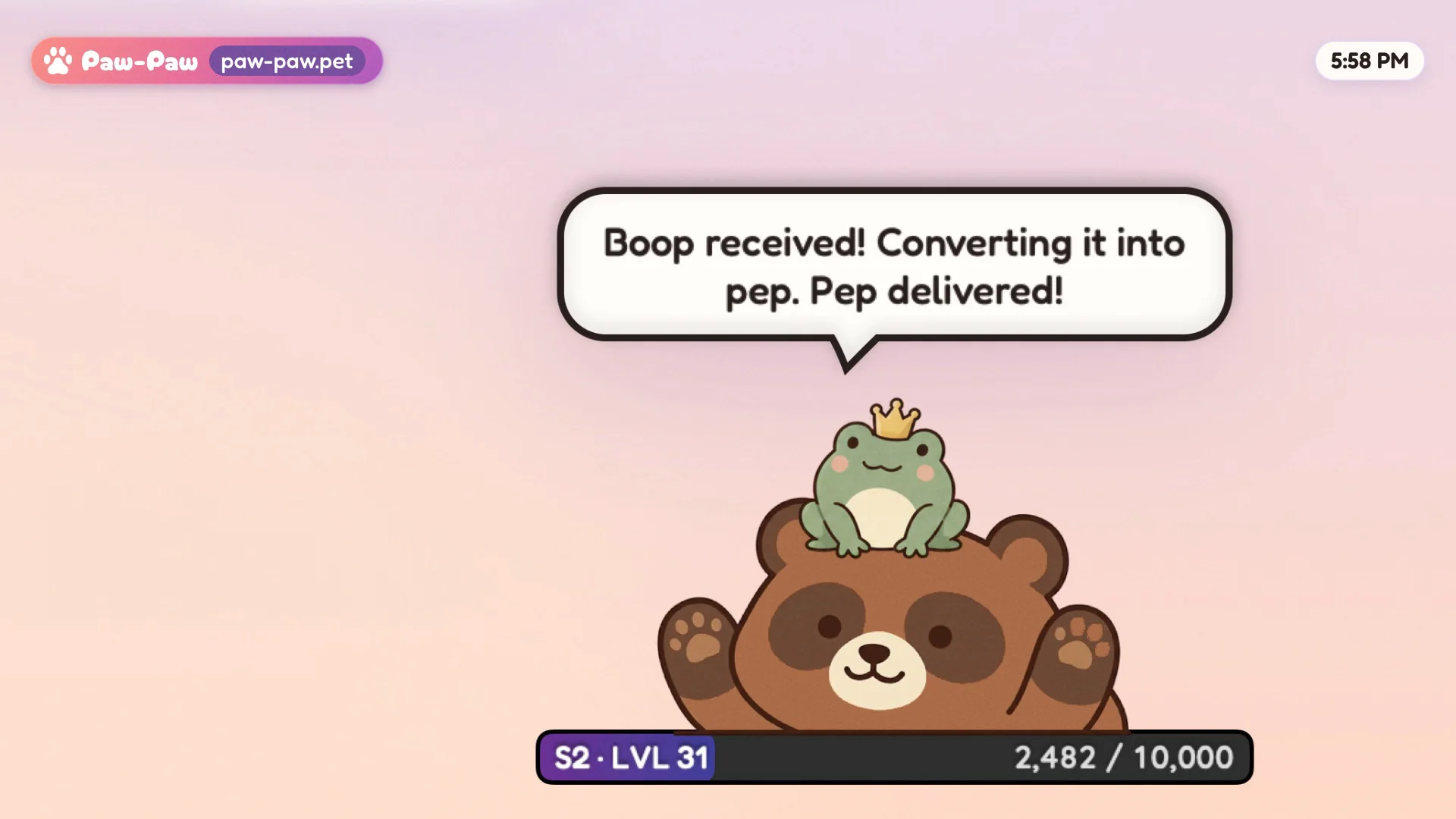
Paw-Paw stays in its spot and reacts. If you would rather have a pet that roams across your windows, our roundup of desktop pets for Mac covers roaming ones too.
What a typing pet can see, and what it can’t
To notice key presses and clicks in other apps, a typing pet on macOS needs your permission. Paw-Paw asks for Accessibility access during setup. With it, Paw-Paw counts key presses and clicks, never what you type, and never logs or transmits typed text.
- The counts stay on your Mac. They turn into your XP, and Paw-Paw does not send them to us.
- No account needed. Without one, your Paw-Paws, items, settings and progress stay on your Mac. If you sign in to sync, your cloud save holds your progress, never what you type, which keys you press or your input counters.
- Diagnostics are opt-in. Usage analytics and crash reports stay off unless you turn them on, and Settings › Privacy changes either choice later.
- Password fields stay private. macOS Secure Input can stop your Paw-Paw from reacting in sensitive fields such as a password box. That is macOS protecting those keys, and it is expected.
The Privacy Policy has the details.
Fitting it around your work
Your Paw-Paw starts in the bottom-right corner of your screen, next to the Dock (bottom-left in Mirror Mode). Drag it anywhere you like; Reset Position puts it back.
- Size and opacity. Choose Small, Medium or Large in Settings, and make it fainter from Opacity in its right-click menu.
- Click-Through. Clicks pass straight through your Paw-Paw to the window underneath. Turn it off again from the menu on Paw-Paw’s Dock icon.
- Hiding. Hide in full screen is on from the start, and you can add apps it should hide for.
- Mirror Mode. Flips your Paw-Paw to face the other way and, unless you have dragged it somewhere else, docks it in the bottom-left corner.
Setting it up in about two minutes
- Download Paw-Paw, open the DMG and drag Paw-Paw into Applications.
- Open it. The Get started window asks you to sign in or skip, make your privacy choices, and allow Accessibility access: click Request Access… and allow Paw-Paw in the macOS prompt. If macOS sends you to Privacy & Security › Accessibility, switch Paw-Paw on there, then come back and click Start Paw-Paw.
- Start typing. Your Paw-Paw appears by the Dock and taps along, and a short tour shows you around.
Paw-Paw runs on macOS 13 Ventura or later, including Sonoma, Sequoia, macOS 26 Tahoe and macOS 27, on Apple silicon and Intel Macs. Our step-by-step setup guide covers the first-launch prompt, the Accessibility step and how to uninstall. If the paws stay still, follow the typing-reaction troubleshooting steps; Secure Input and an outdated Accessibility grant can prevent reactions.
Frequently asked questions
What is a typing pet?
A typing pet is a desktop pet that reacts to your keyboard and mouse instead of wandering around on its own. Paw-Paw’s animal taps its paws as you type and click, naps when you stop, and earns XP toward new Paw-Paws and items while you work.
Does Paw-Paw record what I type?
No. Paw-Paw needs macOS Accessibility access to notice when you type and click. It counts key presses and clicks, never what you type, and never logs or transmits typed text. The counts stay on your Mac.
Why doesn’t my Paw-Paw react in some fields?
macOS Secure Input, which protects password fields and some other sensitive places, can stop apps from noticing key presses there. Your Paw-Paw reacts again once Secure Input is off.
Why did my Paw-Paw stop earning XP?
Pause XP for repeated input, on by default in Settings, holds XP while you hold a key down or repeat the same key or click in a fast burst, and the XP bar shows Anti-Cheat with a pause sign. Ordinary typing earns XP again at once.
Is Paw-Paw free?
Yes. Paw-Paw is free, with no ads or subscription and no account needed. Both seasons, with dozens of Paw-Paws and more than 100 items, unlock as you play. The one optional extra is an artist collection, a one-time USD 2.99 purchase inside the app.
Which Macs does Paw-Paw run on?
Macs running macOS 13 Ventura or later, including macOS 14 Sonoma, macOS 15 Sequoia, macOS 26 Tahoe and macOS 27. It is a universal app for Apple silicon and Intel Macs.

Give your keyboard a friend
Free, with no ads, subscription or account. Native macOS, and it reacts as you type in most apps once Accessibility access is granted.
Download Free for MacFree · macOS 13+ · Apple silicon + Intel